The Workflow Builder helps your hotel team create automatic workflows that save time and reduce manual work. You can set up rules so that certain tasks—like housekeeping or guest services—happen automatically when something specific occurs, like a reservation update or a VIP guest checking in.
This guide will show you how it works and how to use it.
The Basics
Before, automation rules had to be set up for users by our internal teams. That took time and wasn't easy to change.
Now, you can create and manage these rules yourself using a simple visual tool—no technical knowledge needed.
Navigating the Workflow Builder
There are two main parts to the builder:
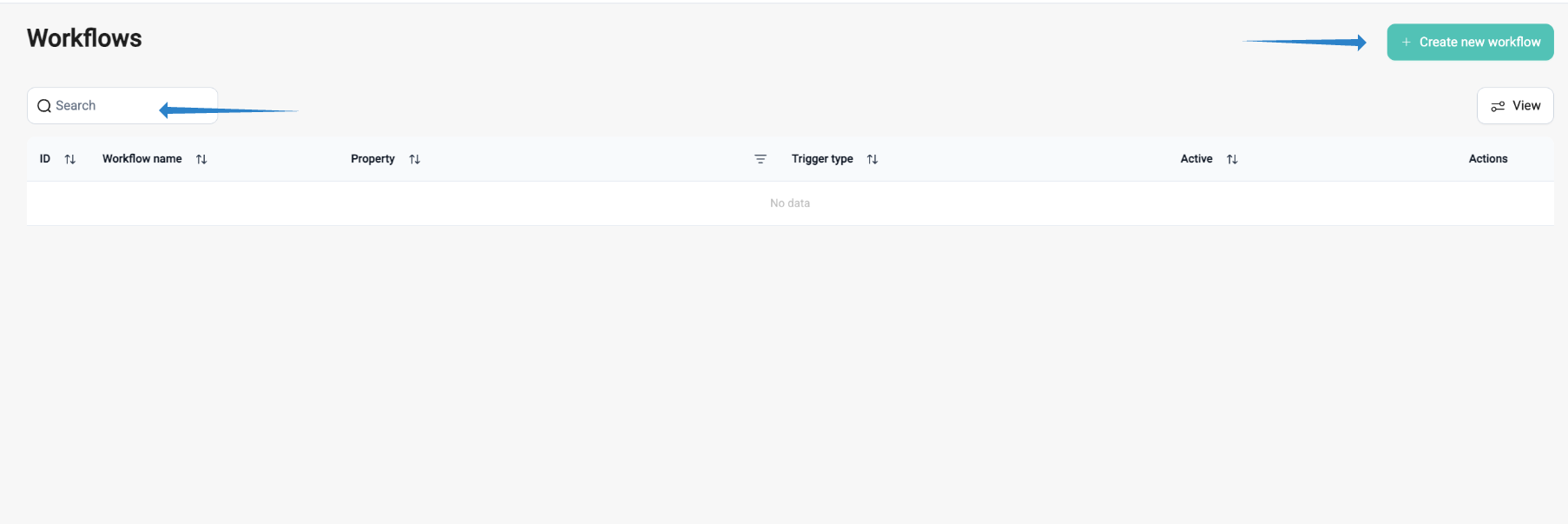
1. Workflow List
This is where you can:
See all the automation workflows your hotel is using
Turn workflows on or off
Make changes, copy, or delete a workflow
2. Workflow Builder
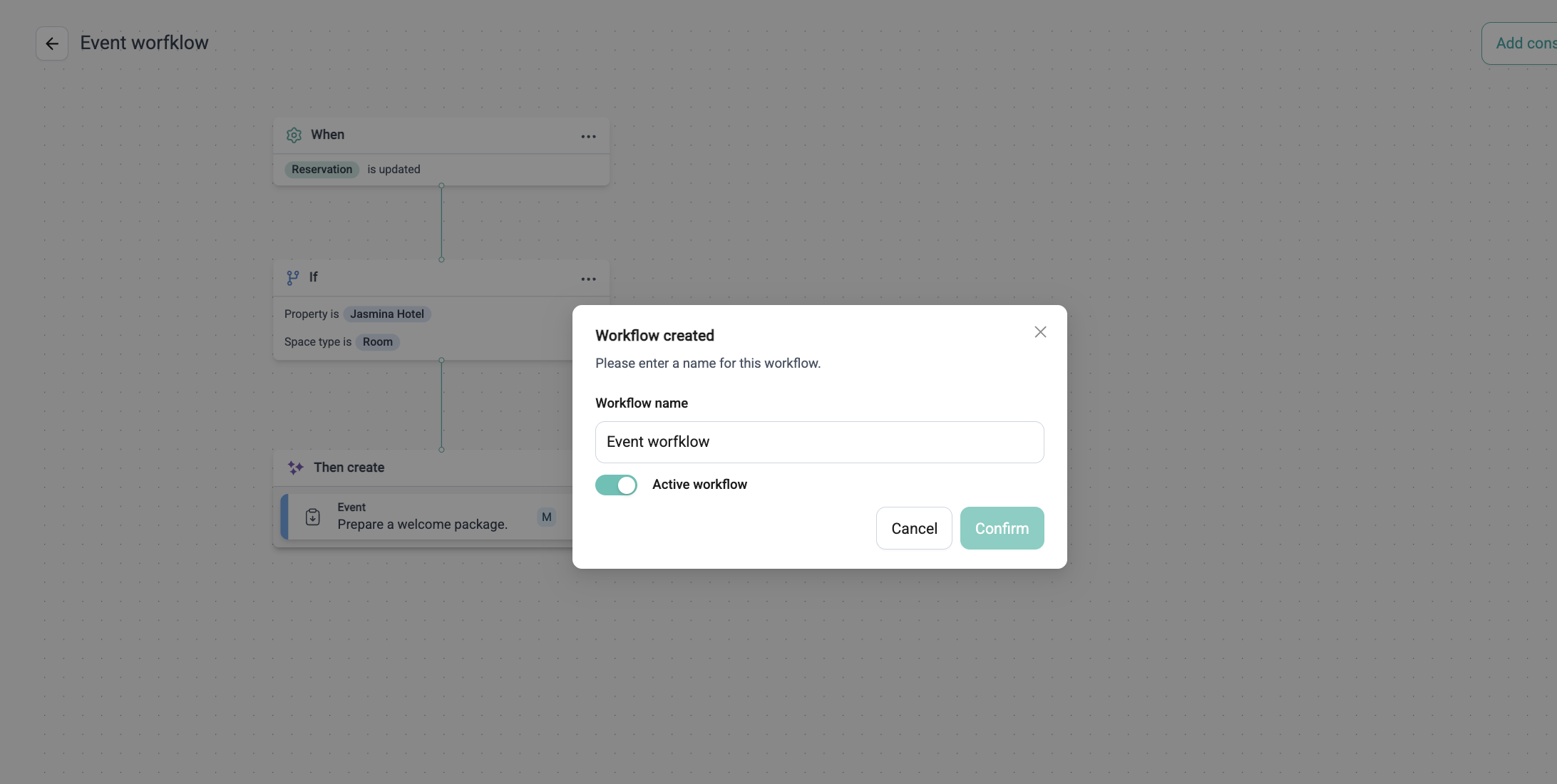
This is where you create or edit automation workflows. It’s visual, like a flowchart. You’ll add building blocks (called “nodes”) for:
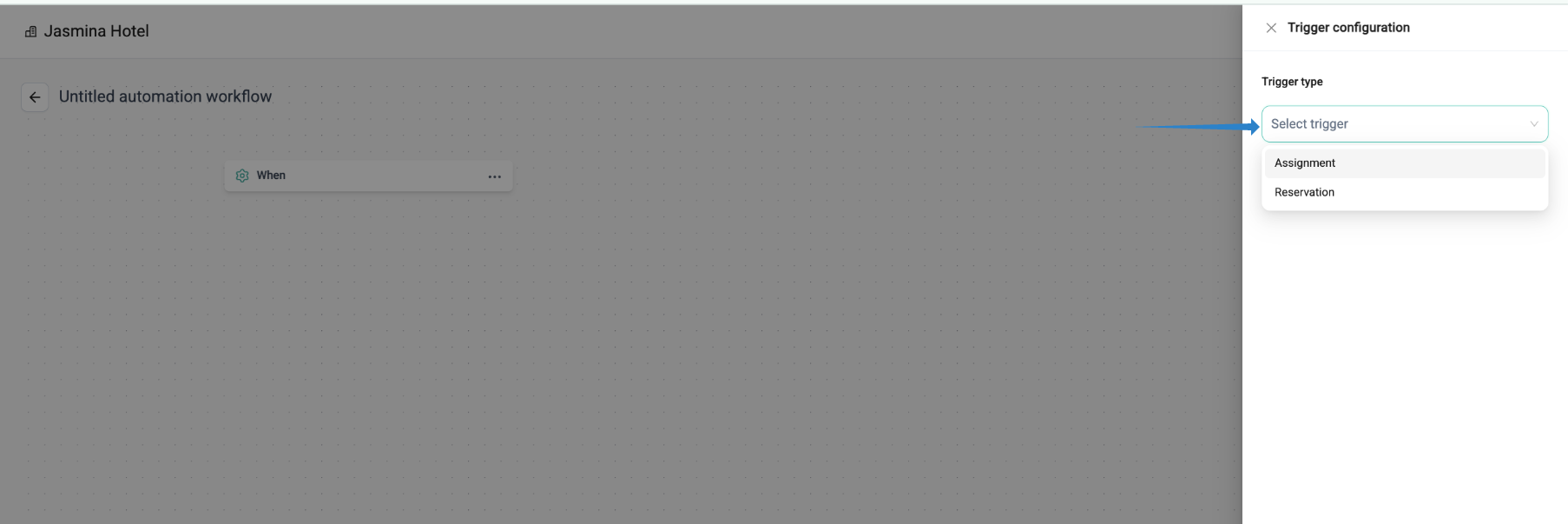
What starts the workflow (called a trigger)
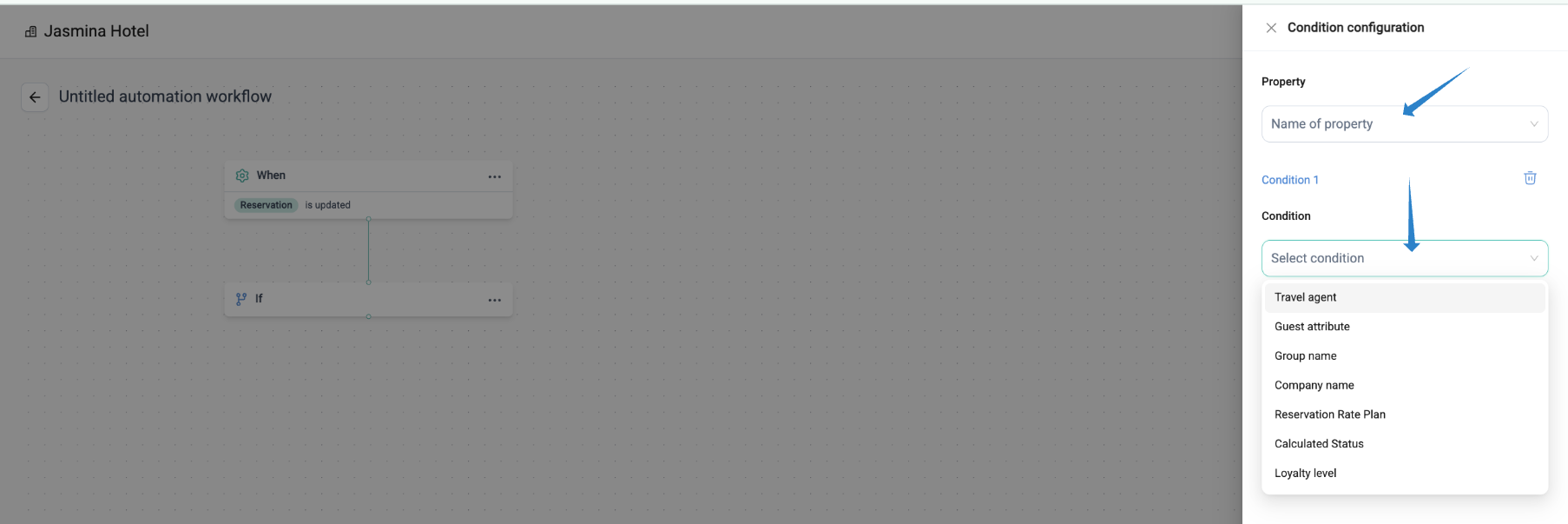
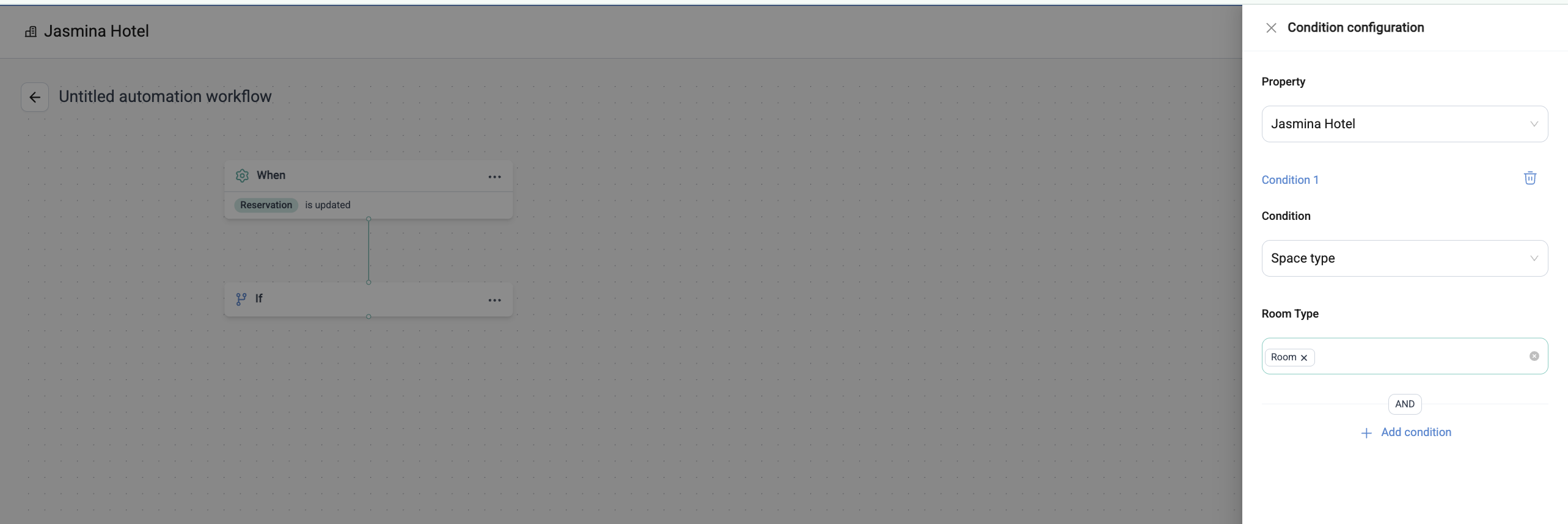
What specifics must be true (called conditions)
What should happen as a result (called consequences)
How to Build a Workflow
Each workflow is made of 3 parts:
1. Trigger (What starts it)
This is the event that sets the automation in motion.
Example: “A reservation is updated” or “A guest checks in.”
2. Condition (What must be true)
This helps narrow it down so it only happens when certain details match.
Example: “The guest has requested a baby cot AND there are more than 3 guests in the room.”
3. Consequence (What happens next)
This is the task or action the system will create automatically.
Example: “Create a task for housekeeping to deliver a baby cot to the room.”
You must add all three parts (Trigger, Condition, Consequence) before you can save the workflow.
Fields that are required will be marked clearly. You can’t save a workflow unless everything is filled in correctly.
Editing Workflow
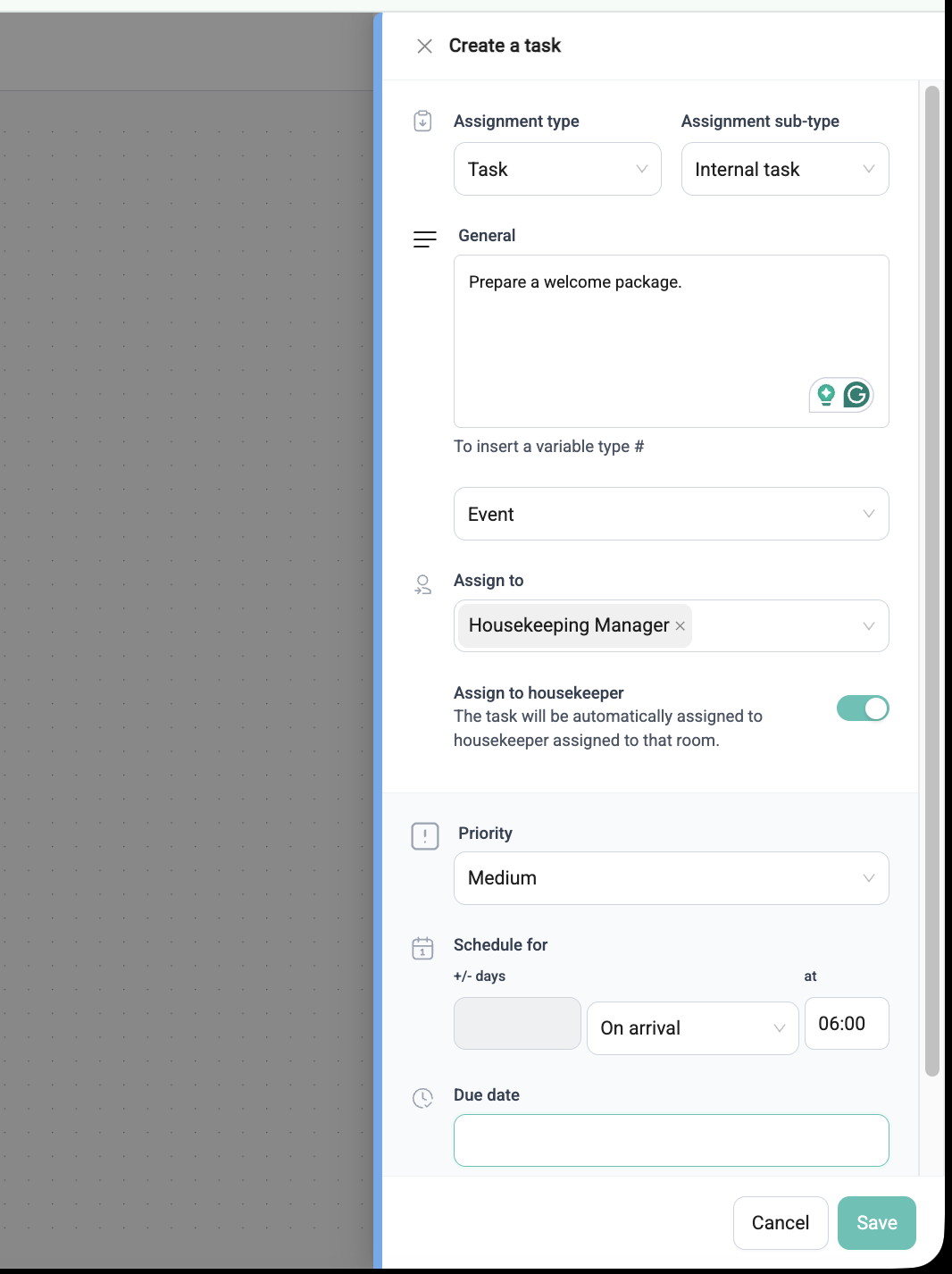
When you click on a part of the workflow, a side panel will open where you can set details.
For example, you can:
Choose what kind of reservation or guest the trigger applies to
Set conditions like room type, cleaning status, or number of guests
Choose which team should receive the task, how soon it’s due, and what the task should say
Managing Workflows
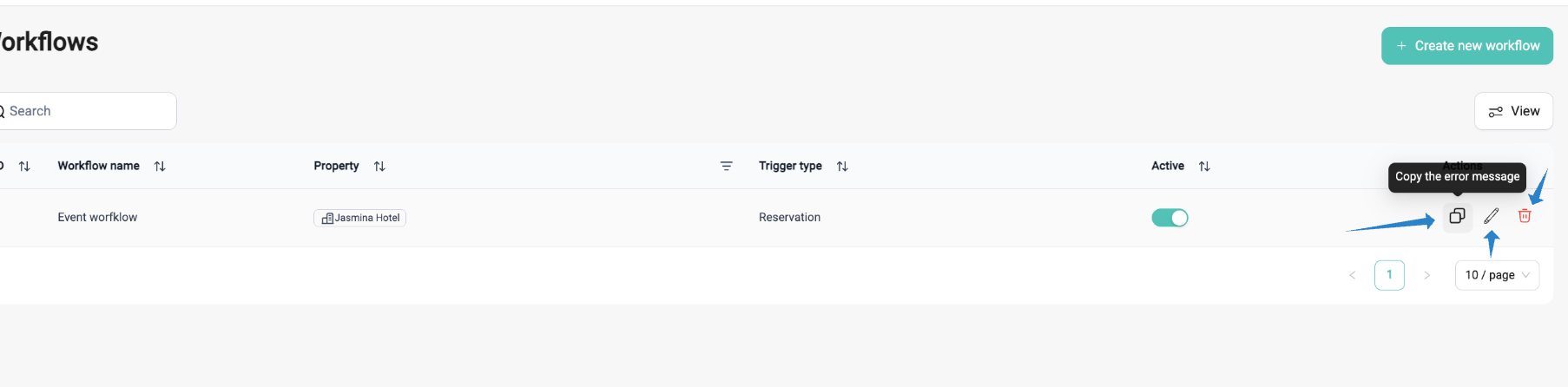
In the main list, you can:
Edit a workflow if you want to make changes
Duplicate a workflow—the new version will be named “Copy of...” and will start as Inactive so it doesn’t run by mistake
Delete a workflow you don’t need anymore
Turn workflows on or off anytime
How It Works in Action
When a workflow is active, it will run every time its trigger and condition are met.
If something changes (like a guest cancelling their stay), the related task will also be automatically removed.
If guest departs all uncompleted tasks related to their reservation will also be automatically cancelled.
You can check how well your workflows are doing with the Execution Dashboard, which shows how many times each rule has run and how many tasks were created.
What Kinds of Triggers Can I Use?
You can choose from different types of starting points (triggers):
Reservation-based (e.g., check-in date, booking source, VIP guest)
Task-based (e.g., new housekeeping task created)
Coming soon: Guest feedback or questionnaire responses
Tips From Team Flexkeeping
Make sure all parts of your workflow are filled in before saving.
Duplicated workflows start turned off. Check and activate them when you’re ready.
Use the dashboard to see how often each workflow is being used.
You can test workflows before turning them on to make sure they work the way you want.
How to Change Access Settings
Workflow Builder is now available for all General Manager user groups. If you’d like to grant access to additional user groups, contact our account manager or reach out to our support team at support@flexkeeping.com.
Was this article helpful?
That’s Great!
Thank you for your feedback
Sorry! We couldn't be helpful
Thank you for your feedback
Feedback sent
We appreciate your effort and will try to fix the article