The checklists overview provides a centralized and transparent overview of all checklists created, completed, or archived within your property. It helps you quickly understand performance, identify errors, and review audit history in detail.
You can access the page here: https://app.flexkeeping.com/overview/questionnaire_users
1. Checklist overview
When you open the page, you will first see:
Date range filter
Select the timeframe you want to review. All displayed data will reflect the selected period.
User activity table
This table lists all team members who worked on checklists within the chosen date range. For each user, you will see:
- Total checklists submitted
- Number of errors across all submitted checklists
- Overview of completed checklists
- Total number of errors found
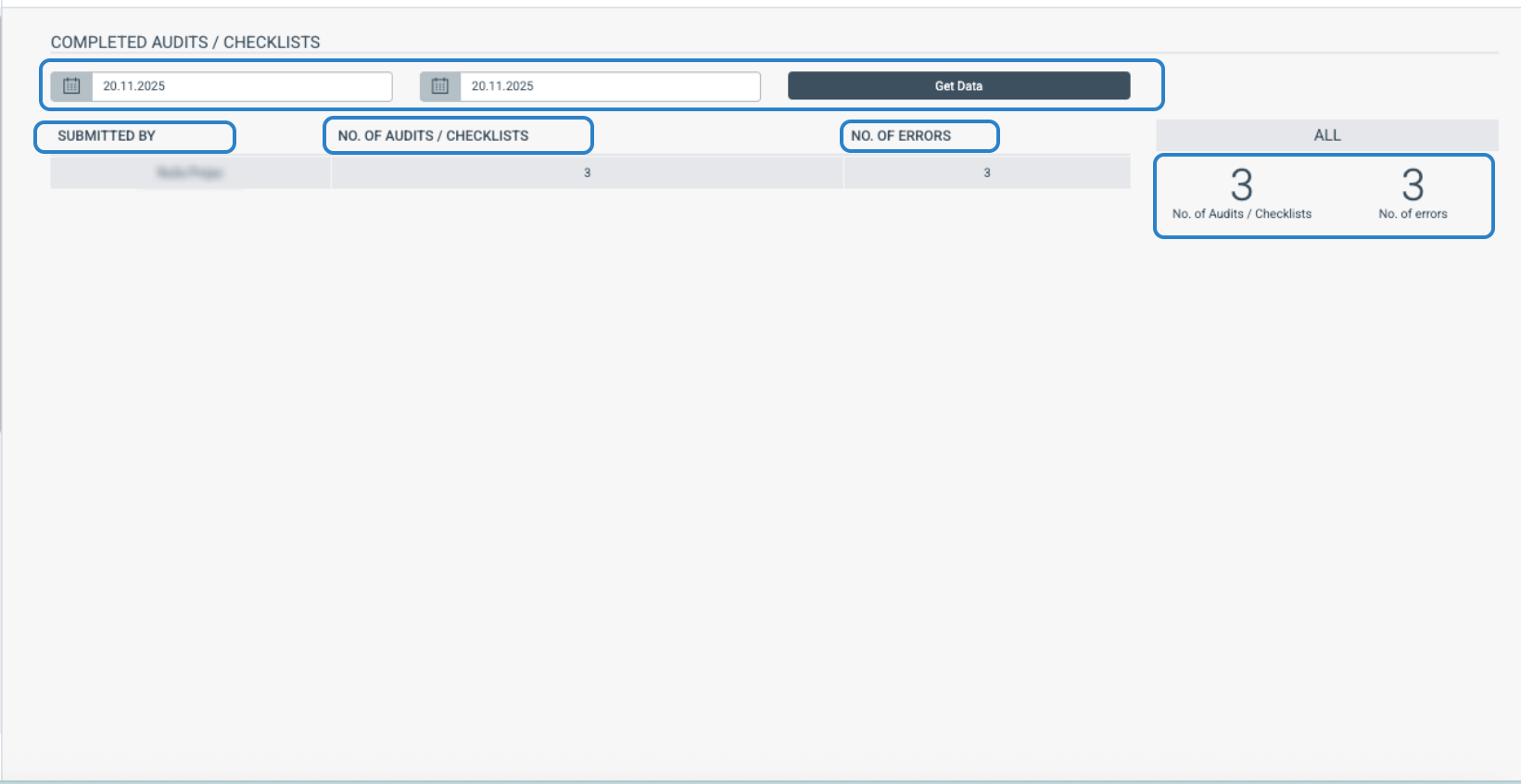
This gives you a quick insight into performance and potential quality gaps.
2. Deep dive into user activity
The page operates on a drill-down principle. To view more details, simply click on a user in the table.
You will then see a detailed breakdown of all checklists completed by that user, grouped by date. For each checklist, the system displays:
- Checklist title
- Status (completed or draft)
- Creation date
- Number of errors
- Number of ok answers
- Total number of answers
- Totals summarized for all checklists
This allows you to understand not only the quantity but also the quality of the user’s work.

3. Viewing full checklist details
If you need to review the content of a specific checklist:
- Click on the checklist you want to open.
- A full view will appear, showing each answer, comment, and flagged error.
This makes it easy to verify responses, audit results, or investigate issues.
To return to the previous page, use the “back” button in the upper-right corner.
4. Export options
You can export any checklist for reporting or internal documentation.
Available export formats:
- Excel
Use the export buttons located in the upper-right corner of the checklist view.
Was this article helpful?
That’s Great!
Thank you for your feedback
Sorry! We couldn't be helpful
Thank you for your feedback
Feedback sent
We appreciate your effort and will try to fix the article